
How to Create a Google Business Profile: A Simple Guide for Small Businesses

A Google Business Profile (formerly Google My Business) is one of the easiest ways to improve your online presence and start getting real leads—especially if you’re a service-based business. Whether you work from an office, from home, or you serve clients on-site, having a Google Business Profile helps people find you quickly, see what you offer, and contact you with just one tap.

At Qbicle Web Studio, we help businesses set up and optimize their Google Business Profiles so they can show up in local searches and get more visibility. If you’ve never created one before, don’t worry, this guide walks you through everything step-by-step.
Why a Google Business Profile Matters
A Google Business Profile allows your business to show up in:
Google Search
Google Maps
Local “near me” results
Service provider listings
It increases visibility, helps build trust, and makes it easy for customers to contact you, read reviews, and learn about your services. For local businesses, it’s one of the most powerful lead-generation tools available.
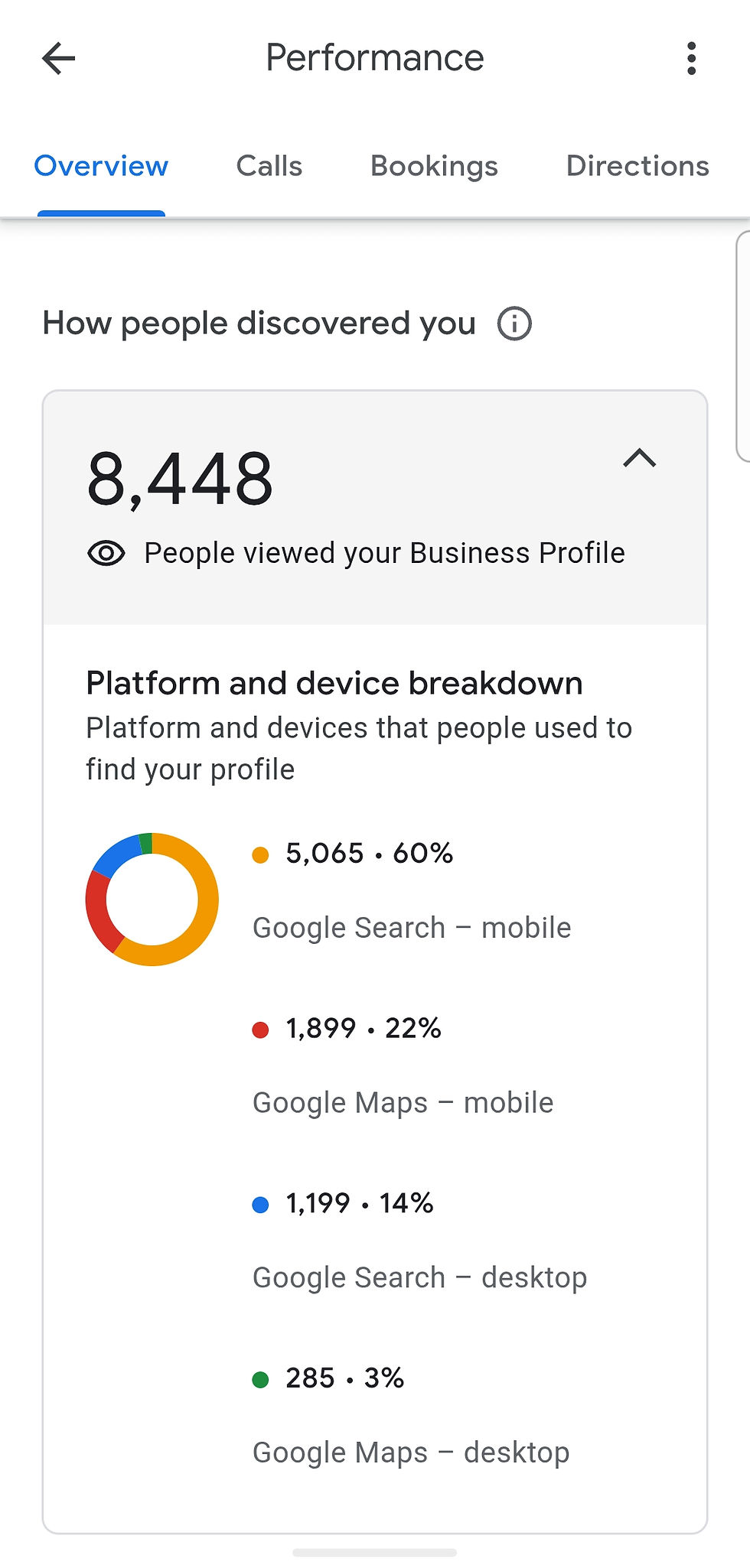
How to Create Your Google Business Profile (Step-by-Step Guide)
Step 1: Go to Google Business
Visit https://www.google.com/business and click Manage Now.
You’ll be asked to sign in using the Google account you want to use for your business.
Choose one you will always have access to.
Step 2: Enter Your Business Name
Type in your official business name exactly as you want it to appear online.
Example: Breuls Associates
Google will show you whether a profile already exists or if you need to create a new one.
Step 3: Choose Your Business Type
You’ll be asked whether you:
Have a physical store,
Deliver goods or services, or
Operate online.
Most service providers choose:
“I deliver goods and services to my customers.”
This option works perfectly for home-based businesses because your address stays hidden.
Step 4: Add Your Service Areas
This is where you add the cities, regions, or neighborhoods you serve.
For example:
Mississauga
Manhattan
Brampton
Sacramento
Choose the areas where your clients are most likely to come from.
Step 5: Choose Your Business Category
Your category helps Google understand what you do.
Start typing and choose the closest match, such as:
IT Support Service
Consultant
Web Designer
Cleaning Service
Marketing Agency
You can always update this later.
Step 6: Add Your Contact Information
Add:
Your business phone number
Your website URL
These help customers reach you instantly.
Step 7: Verify Your Business
Google may verify your business through:
Email
Phone
Video call
Postcard to your home or office
Verification ensures your business is legitimate and prevents fake listings.
After You Create Your Profile: What Comes Next?
Once your profile is set up, you’ll want to:
1. Add photos
Your logo, workspace, team, or services.
Profiles with photos get more views—Google has confirmed this.
2. Add your services
List everything you offer so you appear for more search terms.
3. Write a clear description
Explain what you do, who you help, and what makes your business unique.
4. Enable messaging
This allows customers to message you directly. It can increase leads immediately.
5. Ask for reviews
Reviews boost credibility and ranking power.
Want Someone to Set It Up for You?
If you don’t have time to manage all of this (or you prefer a professional setup), we can create, verify, and fully optimize your Google Business Profile for you.
We’ll take care of:
Category optimization
Keyword-rich content
Service list setup
Photo and branding setup
Review strategy
Ongoing updates
Your business deserves to be found easily, and a Google Business Profile is the perfect place to start.
If you’d like help, just reach out!


Comments